


Video (.GIF;.MP4) to Wallpaper
4.4819.00 Reviews
App Specs
- Version
- 1.1.12
- Updated On
- License
- Free
- Downloads
- 1,000,000+
- Developer
- Audrius Koncius
- Categories
- Personalization
- Platform
- Android
Screenshots
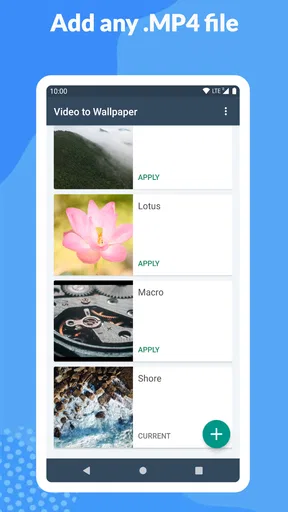
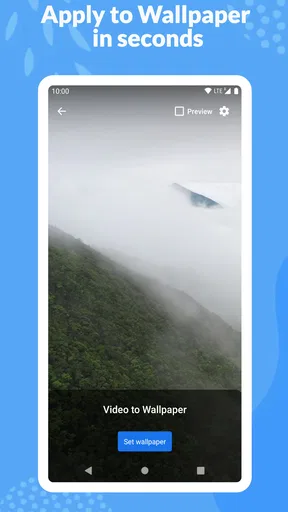
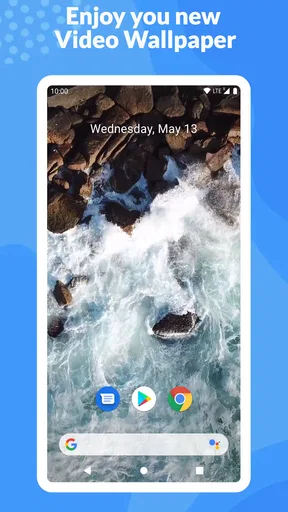
 Analysis by AppCompare
Turning a favorite clip into a moving background sounds simple, but the result depends on more than choosing a video and pressing a button. I tested Video (.GIF;.MP4) to Wallpaper as a personalization app, and I found its appeal in that direct purpose: it takes a GIF, MP4, or MOV file and prepares it for use as a live wallpaper. It is not trying to be a full video editor or a social feed. That narrow focus makes it easy to understand, while also making its limitations more noticeable.
The app is free to install, with optional in-app purchases priced at $0.99 per item. It comes from Audrius Koncius and is suitable for Everyone, so it is approachable for people who simply want to customize an Android phone without learning a complicated design tool. It supports devices running Android 7.0 or later, and the current version is 1.1.12.
How the wallpaper workflow feels in everyday use
The first thing I liked is that the idea is immediately clear. Instead of searching through a large wallpaper catalog, I can work with a clip I already have. A short animation from a family moment, a looping graphic, or a small camera recording can become the background on my phone. That personal angle is more interesting to me than using another collection of static images.
The app’s format range is useful because people do not keep all their media in one type. GIFs are common for short loops, MP4 is the format I encounter most often on a phone, and MOV files may come from other devices or editing apps. Being able to bring these formats into one wallpaper workflow saves the nuisance of converting every clip somewhere else first.
I would still approach the process with realistic expectations. A video that looks good in a gallery is not automatically a good wallpaper. Tall phone screens can crop a wide recording, and a busy scene can make icons difficult to read. Before choosing a clip, I look for a subject that stays away from the edges and avoid footage with important details near the lower part of the frame, where shortcuts and navigation controls may compete for attention.
One practical technique is to choose a clip with a calm beginning and ending. A loop that cuts abruptly can feel distracting every time I unlock the phone. A short movement that returns naturally to its starting composition works much better, even if the original video was not created as a loop. This is one of the app’s strengths and weaknesses at once: it gives personal media a new role, but the quality of the result depends heavily on the source file.
Where connectivity enters the experience
The central task is based on media already available to the device, but connectivity can still shape the experience around it. If I am obtaining a clip from cloud storage, a messaging service, or a social platform, the download step depends on my connection and on that other service. A slow network can make the preparation feel like an app problem even when the delay happens before the wallpaper tool receives the file.
Worth Reading Before You Choose

EA SPORTS FC Mobile 26 Is a Bigger Football Game, but It Takes Time

Flipboard Shows What News Apps Must Do Beyond the Feed

Switching to Android Auto Means Rethinking Your Driving Routine

Google Calendar Makes a Crowded Week Easier to Manage

Ludo King Makes the Most of the Minutes Between Plans

Baby Panda World Brings Quick Play to Modern Phones, but Its Game Library Feels Busy
This matters when I am away from home and want to personalize the phone quickly. I would prepare the video before leaving, rather than rely on finding or transferring a large file at the last minute. The app is most convenient when the chosen GIF, MP4, or MOV is already easy to access on the phone. That workflow keeps the personalization step focused instead of mixing it with searching, downloading, and troubleshooting another app.
I also would not treat it as a replacement for a wallpaper service that continuously delivers fresh online artwork. Its value is control over a particular clip, not discovery. If my priority is browsing a large stream of ready-made backgrounds, a dedicated wallpaper catalog is likely more convenient. If my priority is turning my own media into something personal, this app has a clearer advantage.
Using it on a busy phone day
A moving wallpaper is most noticeable during brief moments: checking a notification, unlocking the phone to read a message, or glancing at the screen while waiting for a train. In those situations, subtle motion works better than a long cinematic scene. I prefer a loop with one clear visual action because it adds personality without making the home screen feel noisy.
There is also a useful distinction between the lock screen and the home screen experience. A clip that looks attractive without icons may become confusing once widgets and shortcuts are placed over it. I recommend setting the wallpaper first, then checking the exact areas where the clock, app labels, and frequently used icons appear. A darker or less detailed section behind those elements can make the whole phone easier to use.
For a travel scenario, I would choose a compact clip saved before the trip, perhaps a quiet landscape or a short animation made from a personal recording. I would test it while the phone is in normal use, not only while viewing the original video. This catches problems such as a subject being hidden behind icons or motion becoming irritating after repeated unlocks.
The app is also a reasonable fit for someone who wants a themed phone without replacing every visual element. One carefully chosen clip can create a stronger sense of identity than a random wallpaper pack. On the other hand, people who want animated lock-screen effects, elaborate transitions, or deep control over widgets may find the experience too focused. This tool handles the wallpaper idea; it does not turn the entire interface into a design project.
What happens when a file or setup goes wrong
Video files are not equally convenient just because they share a familiar extension. Resolution, orientation, length, and visual complexity can all affect how comfortable a clip is as a background. I would start with a short portrait-oriented file and only move to more demanding material after confirming that the basic workflow suits my phone.
If the result looks cropped, I would not immediately blame the app. The source may have been recorded in a wide format that does not match the screen. A better recovery step is to select a different clip or prepare a portrait version in a separate editor before trying again. This is a realistic trade-off: the app makes the final wallpaper step simple, but it is not a substitute for every kind of video preparation.
When a wallpaper feels distracting, the best fix may be changing the footage rather than abandoning animated backgrounds altogether. A slower clip with a plain background often looks more polished than a high-energy recording. I also find that a loop with fewer sudden changes is easier to live with over several days.
Connectivity can complicate recovery if the original file is stored elsewhere. If I need to retrieve it again from cloud storage or a messaging conversation, the quality of the network affects how quickly I can test another version. Keeping a suitable copy on the device makes experimentation less frustrating. It also avoids repeatedly transferring the same media just to adjust a choice that could have been made earlier.
Another point worth remembering is that a wallpaper change is a system-level visual decision, not just a preview inside the app. I would always check the phone after applying the result, including the home screen and the lock screen if both are involved in the setup. A preview can look fine in isolation while the final layout becomes hard to read.
Being careful with storage, battery, and mobile data
Animated backgrounds naturally deserve more attention than static ones when I am thinking about everyday phone resources. A large or visually complex video is a less sensible choice than a short, lightweight clip if I want the phone to remain comfortable during a full day. I would avoid using a long recording simply because it is available, especially when a small excerpt communicates the same idea.
Mobile data is most relevant before the wallpaper is created, particularly when the video has to be downloaded or transferred. A practical habit is to choose and prepare clips on Wi-Fi, then keep the final media available locally for future changes. That reduces the chance of spending cellular data repeatedly on a file that I may decide not to use.
Storage is another quiet consideration. Keeping several large videos for wallpaper experiments can take more room than expected, especially when the original and edited copies are both retained. I would keep only the versions that work well on the phone and remove abandoned exports. This is not a glamorous tip, but it makes the personalization workflow easier to maintain.
For battery-conscious users, I would begin with a restrained animation rather than a bright, constantly changing scene. The important question is not whether motion looks impressive for a few seconds, but whether I still enjoy it after seeing it dozens of times. A simple loop usually has a better chance of remaining pleasant and unobtrusive.
These choices also help with privacy in a practical way. A personal video can be meaningful as a wallpaper, but it may reveal more than intended when the phone is visible to other people. I would avoid clips containing private conversations, sensitive documents, or faces I do not want displayed in public. The app’s personalization strength means the responsibility for selecting appropriate media stays with me.
Who will appreciate it, and who should choose something else?
I think this app suits people who already have a particular clip in mind and want a straightforward path from media file to animated background. It is especially appealing to users who dislike generic wallpaper packs and want a personal recording, a favorite animation, or a custom visual on the home screen.
It is less suitable for someone who expects a large library of designs, automatic daily changes, or advanced editing controls. A conventional static wallpaper remains the better choice for maximum simplicity, readability, and minimal visual movement. A video editor is preferable when the source needs serious cropping, trimming, color work, or composition changes before it can look right on a phone.
The app has earned a 4.4 average from around 13 thousand ratings, and it has passed the million-install mark. Those figures suggest that the focused concept has found a substantial audience, but they do not change my main advice: the quality of the experience depends on choosing sensible source material and checking how it behaves in normal phone use.
It is also worth keeping expectations clear around the free model. The app itself is free, while optional purchases cost $0.99 per item. I would try the basic workflow first and only consider an optional purchase if it addresses something I genuinely need. That approach is more sensible than paying before knowing whether animated wallpapers fit my habits.
My connectivity verdict
After using it, I see Video (.GIF;.MP4) to Wallpaper as a focused personalization tool rather than an all-purpose media utility. Its best quality is the direct connection between a clip I care about and the look of my phone. Its main friction comes from everything surrounding that conversion: finding a suitable file, dealing with the shape of the screen, keeping the animation readable, and managing large media responsibly.
Connectivity affects those surrounding steps more than the creative idea itself. A reliable connection helps when media must be fetched or transferred, while a prepared local file makes the process feel much more immediate. I would plan the media first, test a short portrait-friendly clip, and judge the result from the actual home screen rather than from the original video alone.
For me, the recommendation is positive with conditions. If you want one of your own GIFs, MP4s, or MOV files to become a living part of your Android setup, this app offers a clear and approachable route. If you want a full wallpaper marketplace, deep video editing, or the quiet efficiency of a static image, another option will serve you better. Used with a carefully chosen clip and sensible data habits, it adds personality without requiring a complicated customization routine.
Pros
- Supports both GIF and MP4 files for flexible wallpaper choices.
- Turns personal videos into distinctive animated wallpapers.
- Simple setup process with an easy-to-understand interface.
- Lets you preview the result before applying the wallpaper.
- Useful for adding motion to otherwise static home screens.
Cons
- Animated wallpapers may consume more battery than static images.
- Some devices may limit video wallpaper support or smooth playback.
- Large video files can take longer to load and process.
- Wallpaper motion may stop when battery-saving modes are enabled.
- Certain features or formats may vary depending on device compatibility.
FAQs for Video (.GIF;.MP4) to Wallpaper
What does Video (.GIF;.MP4) to Wallpaper do?
Video (.GIF;.MP4) to Wallpaper is an Android personalization app that lets you turn compatible videos or GIF files into animated wallpapers. After selecting a file from your device, you can usually preview it, adjust basic playback or display options, and apply it to the home screen, lock screen, or both, depending on your phone’s Android version and wallpaper support.
Which video and GIF formats are supported?
The app is designed primarily for common GIF and MP4 files, but exact compatibility may depend on the file’s encoding, resolution, frame rate, and audio track. Some unusually large, damaged, or highly compressed videos may fail to load or play smoothly. If a file does not work, converting it to a standard MP4 format and reducing its resolution can often improve compatibility and performance.
Can I use the wallpaper on both the home screen and lock screen?
Whether the animated wallpaper can appear on the home screen, lock screen, or both depends on the app’s available settings and your device manufacturer. Android versions and custom interfaces handle live wallpapers differently, so some phones may limit the choice to the home screen. During setup, check the system wallpaper screen carefully before confirming the final placement.
Does using a video wallpaper consume more battery or storage?
Animated wallpapers generally use more battery and processing power than still images, especially when the video is long, high-resolution, or continuously replayed. The original video also remains stored on your device and may require considerable space. For better performance, choose a short, optimized clip, avoid unnecessarily high resolution, and monitor battery usage after applying it.
Is Video (.GIF;.MP4) to Wallpaper free and safe to use?
The app may be available as a free download, although its exact advertising, optional purchases, and permission requirements can vary by version. Before installing, review the Google Play listing, developer information, recent user feedback, and requested permissions. Only grant access needed to select media and configure the wallpaper, and download the application from an official store whenever possible.


